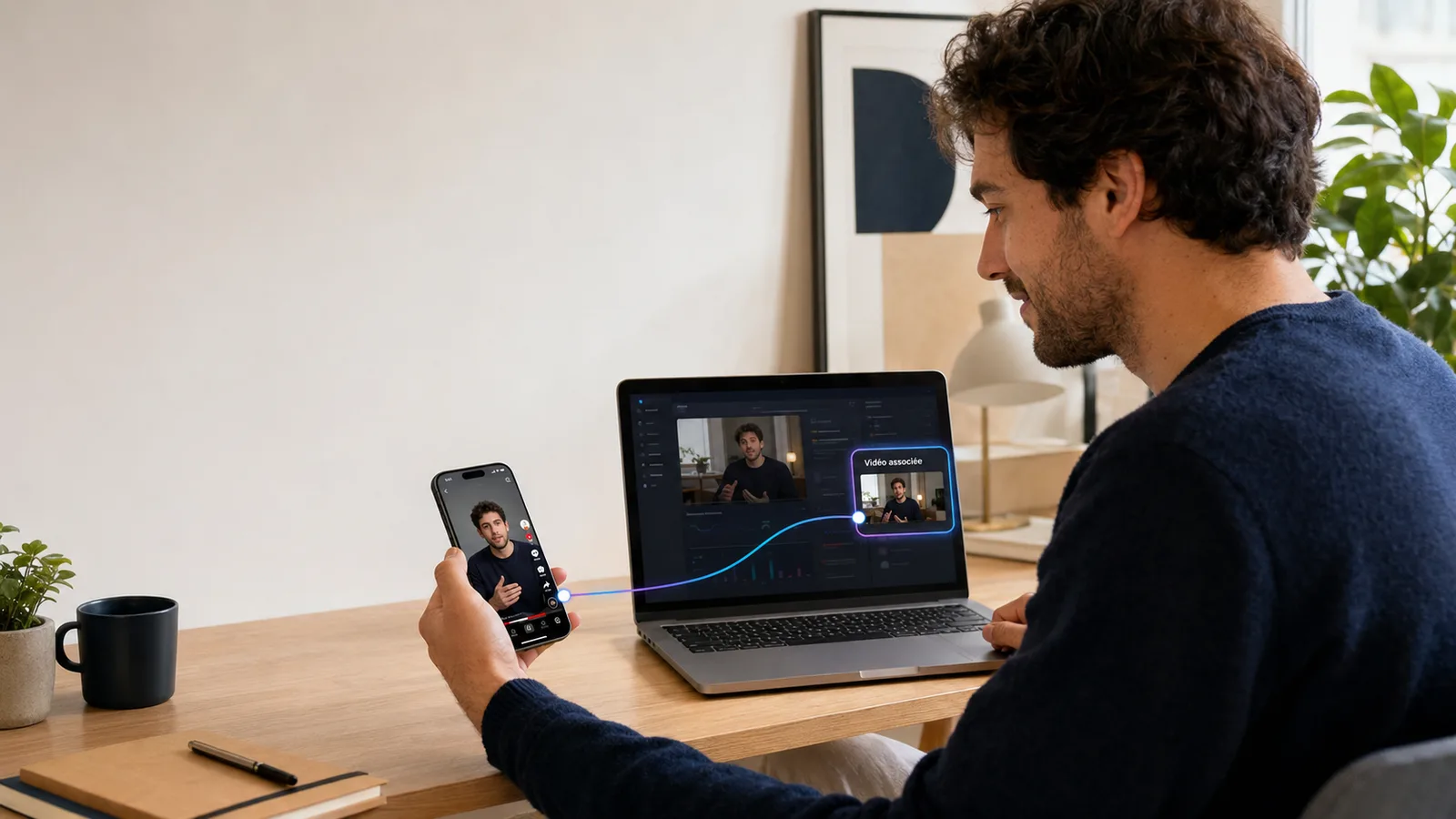
Uploading a short video and seeing the view counter hit 50,000 provides an immediate rush of dopamine. Analysing your dashboard the next day and realising that your latest 15-minute video has only garnered 12 views is far more frustrating.
For a long time, YouTube Shorts operated as an isolated island. Viewers would binge-watch vertical content, swipe through the screen with their thumb, and then leave the platform without ever discovering the creator’s wider ecosystem.
By updating its documentation and features in YouTube Studio, Google has officially launched the solution with the feature Related Video (or Related video). It is now possible to link a Short directly to a long-form article via a native clickable link, which is fully integrated on both mobile and desktop devices.
A short route without a bridge creates a view. A connected short route builds a journey.
Here is a step-by-step guide to turning fleeting visibility into engaged followers and tangible opportunities for your creator business.
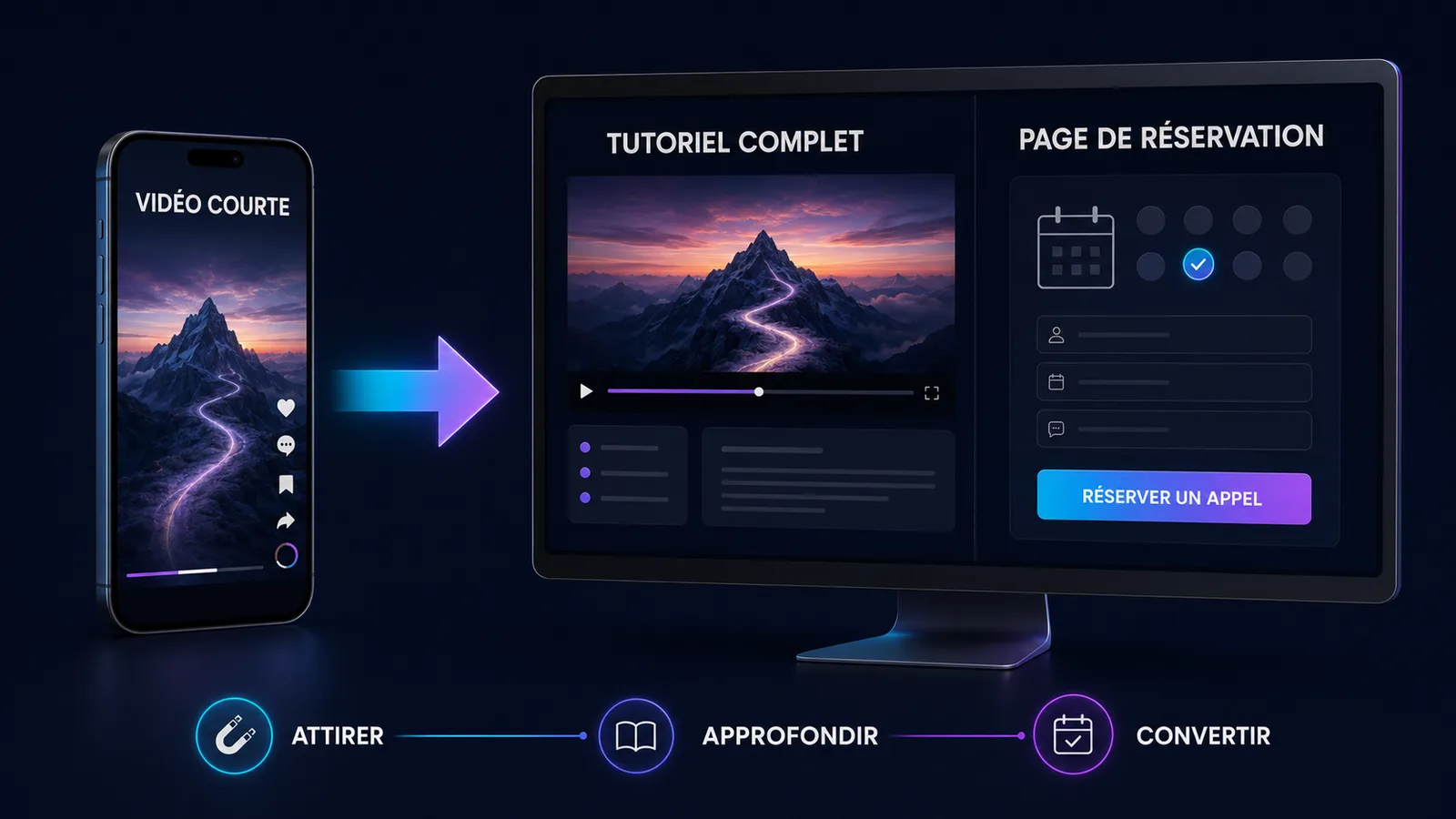
Why ‘Shorts’ views don’t naturally transition to the long-form format
A user’s behaviour on the Shorts feed is completely different from that of a viewer on YouTube’s standard homepage.
In the long-form format, the user performs a a conscious choice : they read a headline, assess a thumbnail, then decide to click. On the Shorts feed, the user is subjected to a passive scrolling. Their attention span is extremely short and their brain is constantly on the lookout for the next visual stimulus.
On the one hand, the ‘Short’ feed encourages passive consumption, with users typically moving on to the next item in under a second. On the other hand, the long-form format requires clear intent and deliberate engagement.
Waiting for a Shorts spectator to spontaneously interrupt its scrolling, click on the name of your channel, consult your "Videos" tab and launch your last long format is an illusion. Without a direct, fluid and immediately accessible bridge, the natural conversion rate almost never exceeds 0,05 %.
What is the Related Video feature?
The function Related Video (or Related video) is an official parameter embedded directly in the YouTube Studio interface. It allows you to link any Short to any other content hosted on the same channel.
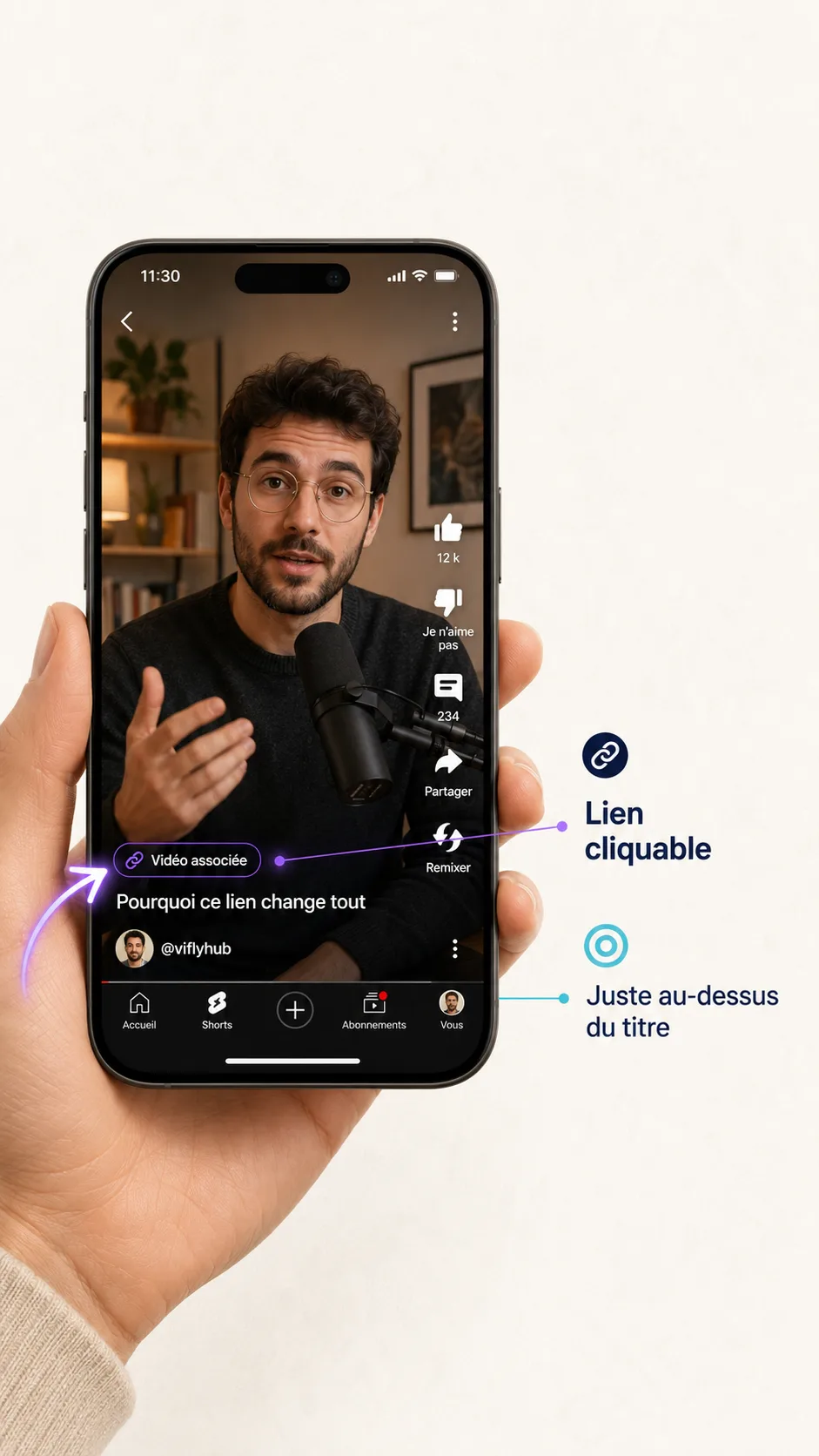
In concrete terms, a clickable button appears as a discrete badge above the short title on mobile, or directly in the player on computer. With one click, the viewer is turned transparently towards:
- A classic long video of your channel;
- Another additional Short;
- A live stream rebroadcast or an upcoming event;
- An unlisted video for a specific audience.
This feature removes 100 % access friction and permanently replaces the famous "link in description" or "link to first comment", historically ignored on mobile.
Add a related video in YouTube Studio
The integration of an associated link is done in seconds from a computer.
For starters, connect to your space YouTube Studio and go to the tab Content located in the left side menu.
Select the Short you want to optimize to open its details. In the right side panel, find the option called Related video.
Click on the pencil icon, select the long video of your channel you want to put forward, then save the changes at the top right.
Key points: The associated video must be owned by the same YouTube channel. It is impossible to point to the content of a third-party channel.
Choosing the right destination to optimise conversion
Linking a Short to a random video will destroy the effectiveness of your strategy. The choice of destination must correspond to a logic of progressive learning.
If your Short sums up a quick tip (for example: "3 organizational errors to avoid"), the ideal associated video must be the full course of 12 minutes dealing with the global method in depth.
If you are planning a live coaching session or an online event, your Shorts published the previous week must point to the Live registration link or its Replay.
For example, an independent consultant publishes a Short entitled: "Why you lose your prospects on the first date". The ideal associated video is a detailed case study of 10 minutes demonstrating its appointment structure. The spectator thus passes from awareness (Short of 45 the proof of competence (Long video of 10 minutes), then click on the appointment tool VIFLY Booking placed directly in description of the long video.
Building the Call to Action for the final five seconds
The simple presence of the button under the Short is not enough. In the vast majority of cases, the user will not notice the link if you do not explicitly indicate it on the screen and in the speech.
The last five seconds of your Short must be built like a narrative rupture and a call to visual action.
Keep a very high value intensity between 0 and 50 seconds without unnecessary introduction. At 50 seconds, create a net break by stating for example: “But this trick is only 10 % of the strategy…”. Finally, during the last 3 seconds, combine an oral call, an explanatory text and a visual sign pointing directly to the bottom of the screen where the clickable badge is located.
You can use a direct script : "To see the full step by step demonstration, click the link right here at the bottom of the screen."
You can also opt for a curious script : "Attention, this method fails if you forget the step 3. I'll tell you about it in the video that's tied down."
Reward the click immediately (within the first 10 seconds)
This is where most routes collapse. If a user clicks on your associated video and falls on a 15 seconds credits or a slow introduction of the type "Welcome to my chain..."he leaves the page immediately.
The retention rate collapses and the YouTube algorithm immediately stops recommending your long format.
The golden rule lies in the absolute narrative continuity. The 10 first seconds of the long video must immediately validate the user's click from the Short.
Avoid vague formulations such as: "Hello everyone, today we meet for a new video...".
Prefer direct attack: "If you come from the Short on offer positioning, here is exactly the first adjustment to make on your profile...".
Common error: Don't change your tone or subject. The spectator seeks the exact continuation of the promise formulated in the short format.
To deepen the conversion mechanics beyond surface metrics, discover our analysis on why more views don't necessarily mean more customers.
Three comprehensive ‘Tunnels’ courses for freelancers and creatives
To turn attention into professional opportunities, your videos must be part of a clear architecture.
The Tunnel Trainer: The Short presents a technical tip of 45 seconds. The associated video is a structured course of 12 minutes. The description looks back to your window VIFLY LinkHub to access the full training program.
The Tunnel Coach and Consultant: The Short analyses a common error observed in a client. The associated video decorates the global case study for 10 minutes. Description redirects to your booking system VIFLY Booking to plan an individual diagnosis.
The Tunnel Content Creator: The Short serves as a high suspense teaser. The associated video delivers complete immersion in VLOG or documentary format. The description gives access to your catalog of premium content.
Measuring the journey from view to action
To check the effectiveness of your gateways, regularly analyze your reports in YouTube Studio Analytics :
- Long format traffic sources: Watch for line increase "Related videos/Shorts". This figure accurately indicates the volume of converted spectators.
- Initial detention (0-30 seconds): If the long video curve drops by more than 40 % at startup, rework your catchphrase to be more direct.
- External conversion: Integrate tracking links across all your spaces VIFLY to identify sales and bookings from YouTube.
This optimisation approach is equally relevant for professionals operating outside metropolitan France, as explained in our guide dedicated to the monetization of social networks in overseas.
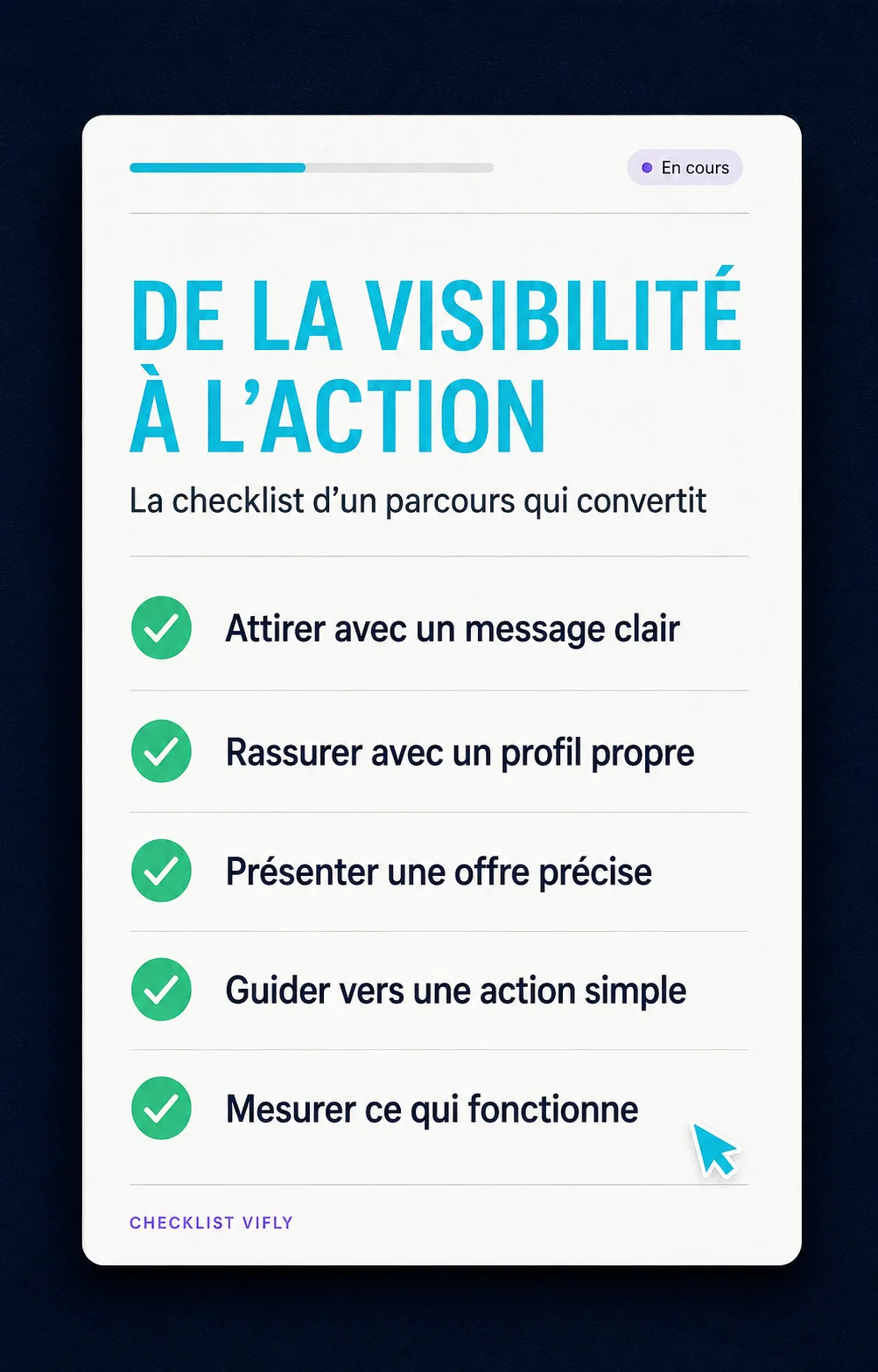
Pre-publication checklist
Before pressing the online button, make sure you validate the following criteria:
The Short deals with a specific aspect directly developed in the long video.
The function Related Video is well informed in YouTube Studio settings.
A call to visual and oral action is integrated into the last 5 seconds of the Short.
The long video starts immediately on the subject, without any credits or endless greeting.
The long video description contains a clear link to your LinkHub or your calendar VIFLY Booking.
Turning visibility into a sustainable business with VIFLY
Capturing views is an acquisition step. Transforming these views into loyal subscribers and then regular customers is the real engine of your creator business.
Instead of directing your audience to trees with generic and slow links, VIFLY allows you to deploy a complete professional showcase:
- LinkHub: An ultra-fast landing page to consolidate your content, networks and offers.
- VIFLY Booking: A fluid appointment making tool to sell your coaching or consulting sessions without friction.
- Simplified monetization: Show off your digital products and exclusive access in just a few clicks.
Ready to turn your visibility into concrete results?
👉 Create your VIFLY space for free today and structure your conversion ecosystem.
FAQ – Frequently Asked Questions: everything you need to know about converting shorts to full-length videos
How to add an associated video to a YouTube Short?
Adding an associated video is done directly from your computer in YouTube Studio. See you in the tab Content, click on the Short you want to edit to open its details, then find the option Related video located in the right side panel. Click on the pencil icon, select the long video of your channel you want to link, then save your changes at the top right.
Can we link another YouTube channel to associated video?
No, functionality Related Video is strictly restricted to content belonging to the same YouTube channel. You cannot redirect your viewers to a third-party or partner channel. This constraint is designed by Google to encourage the development of your own brand ecosystem and global retention on your account.
Why don't the spectators of my Shorts click on the linked video?
The lack of clicks comes almost systematically from the absence of a Call To Action (CTA) visual and oral in the last 5 seconds of the Short. Users use the feed passively: if you don't interrupt their scrolling by explicitly showing the location of the button (badge clickable under the title) while explaining the added value of the long format, they will instinctively zap to the next video.
Where does the associated video link appear on the mobile app?
On the YouTube mobile app, the link is displayed as a discreet badge with a small reading icon, located just above the title of the Short and the name of your channel. On computer, this badge appears directly within the video player. Its appearance is uniform and designed not to mask the main visual content of the Short.
Does the associated video negatively affect the Shorts algorithm?
No, adding an associated video does not impact the scope or algorithmic distribution of your Short in the main stream. On the contrary, YouTube highly values channels capable of generating long viewing sessions. If a viewer moves from your Short to your 15 minutes video, you increase the total time spent on the platform, which sends a very positive signal to the recommendation algorithms.
📚 Sources & References
- Official YouTube Blog: Official feature update guide Related Shorts & Videos, YouTube Official Blog (Official update 2026).
- Google YouTube Support: Add a video associated with a Short in YouTube Studio, Official Documentation Google Search Central & YouTube Help Center.
- Hearing Studies and Video Retention: Creator Academy Report on Attention Retention and Mobile User Behaviour.